

Printer Driver | macOS | Magicard

Magicard macOS Printer Driver
You can download the latest macOS driver and all related files from back on the homepage for your printer.
- In the Printer drivers tab select macOS.
The Magicard macOS Driver works for all Magicard printers.
(*bar Prima, which only has its own windows driver)
Compatible from macOS Mojave 10.14.6 and onwards:
ℹ️ Apple has completely removed support for the CUPS web interface in macOS 27 (Golden Gate).
The traditional method of enabling it via Terminal using cupsctl WebInterface=yes no longer works, and navigating to http://localhost:631 will fail. Because the web GUI has been fully deprecated, you must now manage your printers, print queues, and defaults using native macOS command-line tools like lpadmin, lpoptions, and lpstat.
See the video below for a download and installation guide.
- 00:15 - Identifying which processor type your Mac computer has.
- 00:55 - Downloading the correct printer driver.
- 02:18 - Installing the driver.
- 04:08 - Adding your printer (USB).
- 04:20 - Printing a test page (USB).
ℹ️ Apple has completely removed support for the CUPS web interface in macOS 27 (Golden Gate).
Therefore the steps below are only supported up to Tahoe macOS 26
- 05:16 - Accessing the CUPS Admin page (localhost:631 in browser).
- 07:00 - Enabling the CUPS Interface (Run “cupsctl WebInterface=yes” from Terminal).
- 08:00 - Setting default printing options.
- 10:04 - Adding your printer (LAN).
- 12:23 - Printing a test page (LAN).
Which processor does my Mac have (Intel or ARM) ?

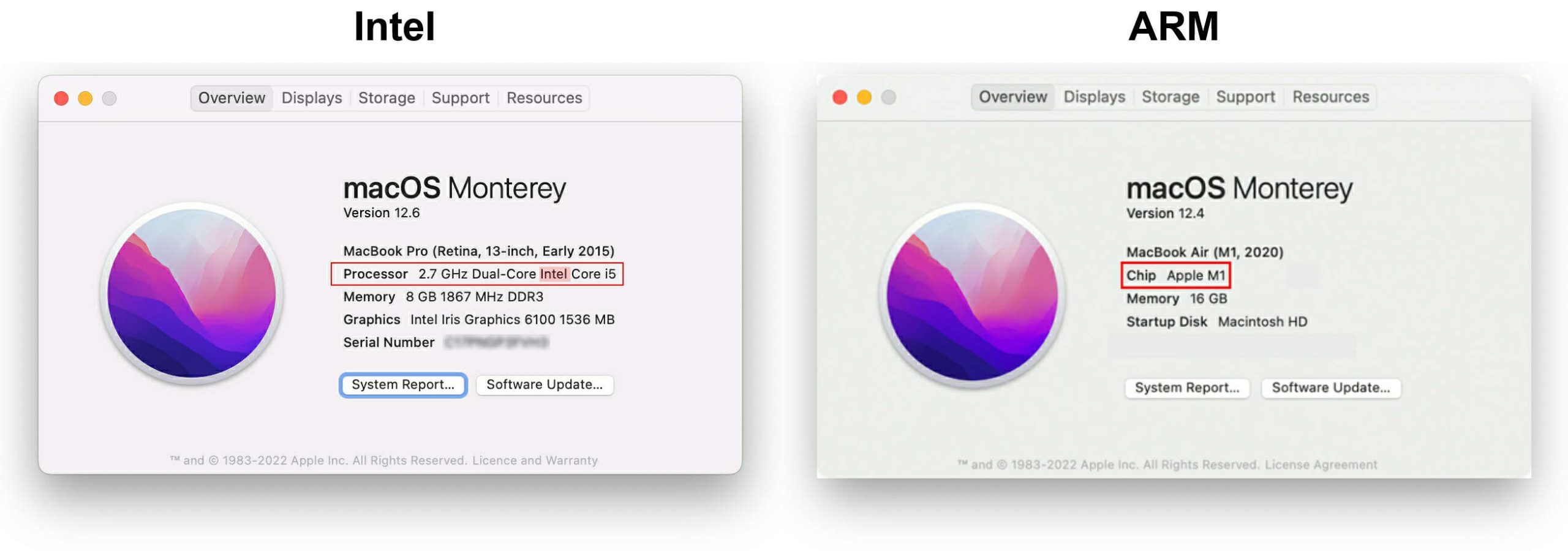
Mac and macOS are trademarks of Apple Inc., registered in the U.S. and other countries and regions.
[MagiConnect_GoogleCloud_Cloud_File key="Magicard Public Storage" bucket="support_site_files" path="User_Guides/1.OS_UserGuides/macOS/mac_os_quick_start_guide_v1.pdf"]


